

TL;DR
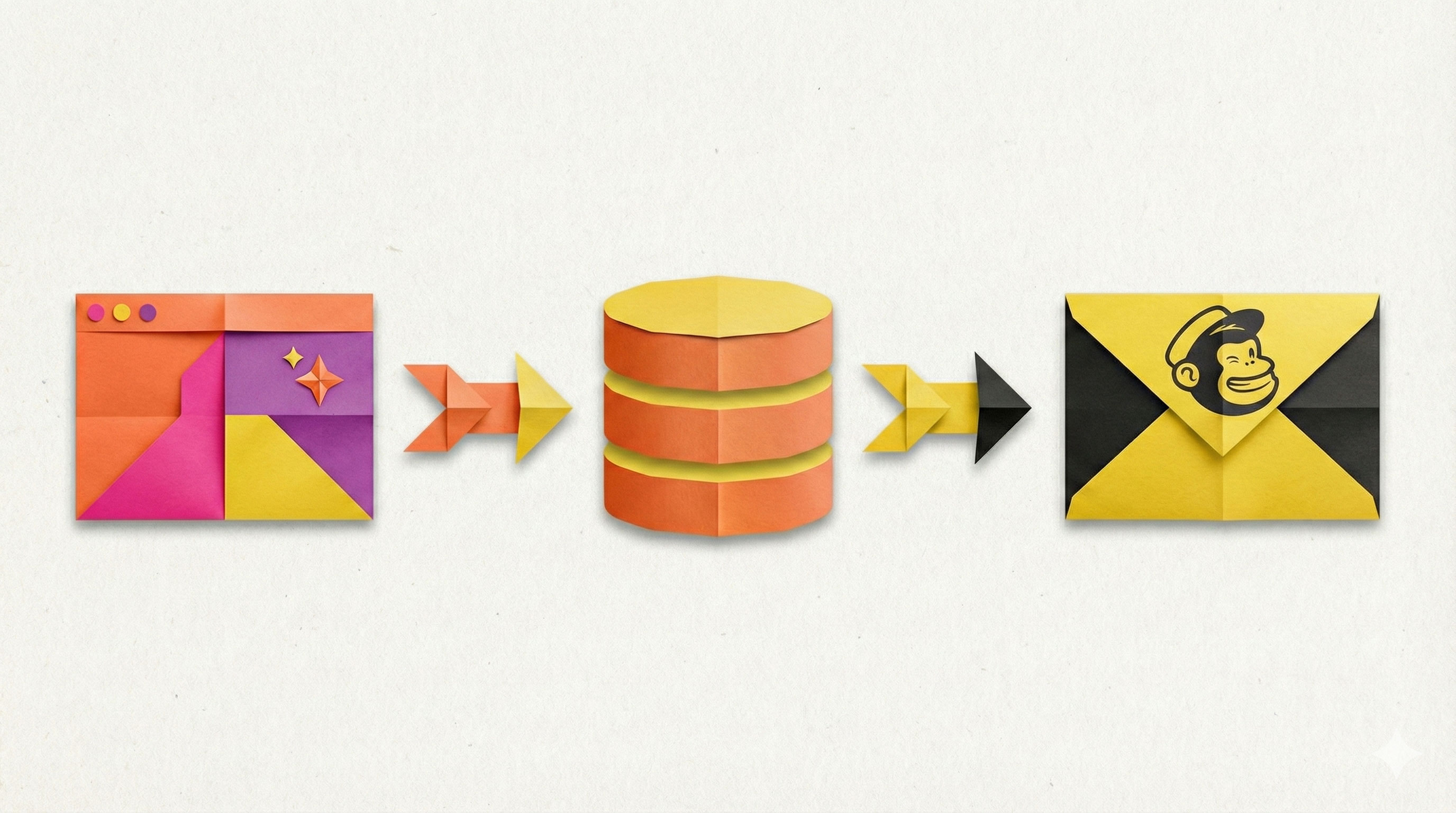
You can use JDoodle.ai as an AI landing page builder to create a webinar or campaign landing page in a few minutes, capture registrations in a built in database, and sync every signup to Mailchimp email marketing automatically.
Here is the pattern:
- Prompt JDoodle.ai to generate a webinar landing page with a registration form.
- Ask JDoodle.ai to connect the form to a database table called
Registrations. - Tell JDoodle.ai to connect the project to Mailchimp.
- Paste your Mailchimp API key, server prefix, and audience ID into the Secrets or Integration panel.
- Test the flow, publish, and start sending reminders and newsletters from Mailchimp.
No custom backend. No manual CSV uploads. No waiting on a developer.
What you will build
By the end of this guide you will have:
- A live email capture landing page for your webinar or feature launch
- A JDoodle.ai database table that stores every registration
- A Mailchimp integration that sends each new registrant into the right audience
This setup is ideal for:
- Founders and indie hackers testing new offers
- Marketers running webinars and launch campaigns
- PMs announcing new product features
- Students and non technical creators who want something live today
Step 1: Generate your webinar landing page with JDoodle.ai
Start in JDoodle.ai with a new project.
Use a simple prompt like:
“Build a Webinar landing page for introducing the built in databases in JDoodle AI. Include title, description, date, time, speaker info and a registration form.”
Then click Build it for me.
JDoodle.ai will:
- Generate the frontend and backend
- Wire up a working registration form
- Run checks so you do not ship a broken page
You will see your first version of the landing page in the preview, ready to edit like a conversation.
Step 2: Refine the landing page by talking to the AI
You do not need to touch code to get this page ready for a real campaign.
Ask JDoodle.ai for changes in plain language, for example:
- “Change the date to December 25 at 5 PM.”
- “Update the headline to focus on built in databases for marketers.”
- “Add a speaker section with a short bio and profile image placeholder.”
- “Switch to a dark color theme with a bright primary button.”
A few practical tips:
- Keep prompts focused on one or two changes at a time
- Preview after each change so you can see exactly what updated
- Think like a campaign: clear headline, benefit driven copy, strong call to action
You can also ask JDoodle.ai to:
- Add social proof or testimonials
- Insert FAQ questions about the webinar or feature
- Adjust fonts, spacing and layout for better readability
At this point JDoodle.ai is acting as an AI landing page builder. You are shaping a full landing page simply by describing what you want.
Step 3: Connect the registration form to JDoodle.ai’s built in database
Next you want every registration stored in a structured way.
If JDoodle.ai has already wired a database for this project, you will see a Database tab. If not, you can create it with a single prompt:
“Connect the registrations collected from the form to a database table called Registrations.”
JDoodle.ai will:
- Create a
Registrationstable - Map form submissions into that table
- Enable the Database tab for this project
Test the connection:
- Open Preview.
- Submit the form with a test name and email.
- Go to Database → Registrations.
You should see your test row, stored automatically.
You can extend the form and database with more fields, such as:
- Job title
- Company
- Role (founder, marketer, PM, student)
- Campaign source (LinkedIn ad, newsletter, referral)
All of this data will be ready to sync to Mailchimp and use in your segments and automations.
Step 4: Ask JDoodle.ai to connect the project to Mailchimp
Now it is time to link this landing page to Mailchimp email marketing.
Inside JDoodle.ai, tell the AI what you want:
“Connect the data collected in this registration form to Mailchimp.”
or
“Connect this project to my Mailchimp account so new registrants are added to my webinar audience.”
JDoodle.ai will:
- Set up the Mailchimp integration flow
- Show a Secrets or Integration section with fields for Mailchimp credentials
You will usually see fields like:
MAILCHIMP_API_KEYMAILCHIMP_SERVER_PREFIXMAILCHIMP_AUDIENCE_ID
Next you will grab these from your Mailchimp account.
Step 5: Copy your Mailchimp API key, server prefix and audience ID
5.1 Get your Mailchimp API key
In Mailchimp:
- Go to your account or profile settings and search for API keys.
- Create a new key.
- Name it something like
JDoodle AI Webinar. - Copy the key and paste it into the API key field in JDoodle.ai.
If you see placeholder text in the JDoodle.ai field, delete it first, then paste the key.
5.2 Find your Mailchimp server prefix
Mailchimp uses a server prefix like us8 as part of the environment.
You can see it in your Mailchimp account URL or in the API base URL. Copy that value and paste it into the server prefix field in JDoodle.ai.
5.3 Find your Mailchimp audience ID
In Mailchimp:
- Go to Audience.
- Open the audience you want to use for this webinar or campaign.
- Open Audience settings.
- Look for Audience ID.
- Copy it and paste it into the audience ID field in JDoodle.ai.
Click Save in JDoodle.ai.
Your JDoodle.ai project now knows which Mailchimp account and which audience to send new contacts to.
Step 6: Test the full flow from form to Mailchimp
Before you share this landing page with anyone, test the integration end to end.
- In JDoodle.ai, go to Preview and refresh the page.
- Fill in the registration form with a test name and email.
- Submit the form.
Now check two places.
In JDoodle.ai:
- Go to Database → Registrations
- Confirm that your test registration appears with all the expected fields
In Mailchimp:
- Open the configured audience
- Refresh the page
- Confirm the same contact has been added
If something does not work, JDoodle.ai will often detect and auto fix common issues without charging extra credits. Run another test submission after any fix and make sure the data lands correctly in both places.
Once both checks pass, your email capture landing page is fully wired to Mailchimp.
Step 7: Use Mailchimp for reminders and newsletters
With the integration working, you can let Mailchimp do its job.
For a webinar style flow, a simple sequence looks like:
Welcome email
- Sent immediately after registration
- Confirms the date and time
- Includes a calendar link
Reminder 1
- One week before the event
- Shares agenda and why it matters
Reminder 2
- One day before
- Includes the join link again
Final reminder
- One hour before
- Short email focused on the join button
You can also drop registrants into your regular Mailchimp newsletter segments once the webinar is over.
Because the data is coming from JDoodle.ai in a structured way, you can build rich segments based on:
- Role
- Company size
- Feature interest
- Campaign source
You now have a fast loop from AI landing page builder to Mailchimp email marketing in every campaign.
Step 8: Publish your landing page and track registrations
When you are happy with the copy, design and integration:
- Click Publish in JDoodle.ai.
- Choose how to share it:
- Use the free hosted URL JDoodle.ai provides
- Remove branding and connect your own custom domain
- Embed the project into your existing website using the small code snippet JDoodle.ai gives you
Then share the link in:
- Paid ads
- Social posts
- Your existing list
- Partner or community promotions
To track performance:
- Open the project in JDoodle.ai
- Go to Database → Registrations
- Check how many people have registered and what segments they fall into
If you prefer, you can export the data or build a small dashboard on top of the same database, all inside JDoodle.ai.
Micro tool idea: a simple webinar projection widget
This integration pairs nicely with a tiny calculator you can build as a separate JDoodle.ai project or as a block on the same page.
Inputs
- Expected visitors to the landing page
- Expected conversion rate to registration
- Expected show up rate
Outputs
- Projected registrations
- Projected live attendees
You can prompt JDoodle.ai to:
“Add a small calculator section that lets me enter expected visitors, conversion rate and show up rate, then calculates projected registrations and live attendees. Store each run in a
projectionstable.”
This gives founders and marketers a quick way to sanity check their goals while they are setting up the landing page and Mailchimp sequence.
Watch the walkthrough
FAQs
How do I use Mailchimp with JDoodle.ai?
Build your landing page in JDoodle.ai using a simple prompt, connect the form to a Registrations table in the built in database, then add your Mailchimp API key, server prefix and audience ID in the integration panel (Secrets Tab). From there, JDoodle.ai sends new registrants into your Mailchimp audience automatically.
Can I reuse this setup for non webinar campaigns?
Yes. Any email capture landing page you build in JDoodle.ai can send data to Mailchimp. Use the same pattern for product launch pages, beta waitlists, lead magnet downloads, or community signups.
Do I need coding skills to connect JDoodle.ai forms to Mailchimp?
No. You shape the landing page and database by talking to the AI, and copy paste three values from Mailchimp into the Secrets or Integration section. JDoodle.ai handles the backend, authentication and API calls for you.
Can I send newsletters and automations to JDoodle.ai registrants in Mailchimp?
Yes. Once a registrant appears in your Mailchimp audience, you can add them to any Mailchimp newsletter, segment or automation flow, including reminders, onboarding sequences and follow up campaigns.
Related Posts
View All Posts »
How to Build a Website for a Makeup Artist in 11 Simple Steps
Learn how to build a clean makeup artist website that showcases your portfolio, lists services clearly, and helps clients book you easily, without needing technical skills.

How to Build a Website for a Gardener in 11 Simple Steps
Learn how to create a simple, professional gardening website that attracts local customers, showcases your work, and makes it easy to get enquiries, without needing technical skills.
How to Build Your SaaS MVP with an AI App Builder in 2026
A practical, step by step guide for founders, PMs, marketers, students, and indie hackers to ship a working SaaS MVP using an AI app builder with a built in database, without touching backend code or wrangling classic no code tools.